SteamOS Explained: A Complete Guide to Gaming, Desktop Use, and Apps on Steam Deck
SteamOS is the real reason the Steam Deck feels different from every other handheld gaming device. While most discussions focus on hardware performance, controls, or battery life, it is SteamOS that transforms the Steam Deck into a flexible, open, and surprisingly powerful gaming PC.
SteamOS is not just a gaming interface. It is a full Linux-based operating system that allows you to play Steam and non-Steam games, run Windows titles through compatibility layers, install desktop applications, use printers, emulate classic consoles, and even replace a traditional desktop or laptop for everyday tasks.

This complete guide explains what SteamOS is, how it works, and how to unlock its full potential. It also connects all major Steam Deck use cases in one place, with links to detailed step-by-step tutorials where needed.
What Is SteamOS?
Featured Snippet Ready Answer
SteamOS is a Linux-based operating system developed by Valve for gaming. It powers the Steam Deck and combines a console-style gaming interface with a full desktop environment, allowing users to play Steam and non-Steam games, install apps, run emulators, and use the device like a traditional PC.
SteamOS is built on Arch Linux and uses the KDE Plasma desktop environment in Desktop Mode. This gives it access to modern Linux features, frequent updates, and a massive ecosystem of open-source software.
If you want a full overview of the device itself and why it has become so popular, start with this guide:
https://www.compromath.com/steam-deck/
Gaming Mode vs Desktop Mode in SteamOS
Featured Snippet Ready Answer
SteamOS has two main modes. Gaming Mode is optimized for controller-based gaming with performance tools and a console-like interface. Desktop Mode provides a full Linux desktop using KDE Plasma, allowing users to install apps, manage files, connect peripherals, and use the Steam Deck like a PC.
Gaming Mode
Gaming Mode is what most users see when they power on the Steam Deck. It is designed for handheld use and focuses entirely on gaming performance and usability.
Key features include:
- Controller-first navigation
- Built-in performance and power controls
- Seamless Steam integration
- Proton support for Windows games
- Fast sleep and resume
Gaming Mode feels like a console, but with the flexibility of a PC underneath.
Desktop Mode
Desktop Mode turns the Steam Deck into a standard Linux computer. You get a taskbar, windowed applications, file management, and full keyboard and mouse support.
Desktop Mode is essential for:
- Installing non-Steam games and launchers
- Running productivity software
- Setting up printers and peripherals
- Emulation and advanced system configuration
- Using the Steam Deck as a desktop PC
This mode is the foundation for almost everything beyond basic Steam gaming.
Can SteamOS Run Windows Games?
Featured Snippet Ready Answer
SteamOS can run many Windows games using Proton, a compatibility layer developed by Valve. Proton translates Windows system calls into Linux-compatible ones, allowing most Windows-only Steam games to run smoothly on the Steam Deck without installing Windows.
Proton is enabled directly from Steam settings and works automatically for thousands of games. Valve also maintains Proton Experimental and supports community versions like Proton GE for better compatibility.
For most players, Proton removes the need to install Windows entirely.
Installing Non-Steam Games and Launchers on SteamOS
SteamOS is not limited to the Steam ecosystem. Desktop Mode allows you to install and manage games from almost any platform.
Epic Games Store on SteamOS
Epic Games Store titles can be installed using third-party launchers and then added back into Gaming Mode for controller-friendly play.
Step-by-step instructions are available here:
https://www.compromath.com/install-and-play-epic-games-on-steam-deck/
Playing GOG Games with Lutris
GOG games work exceptionally well on SteamOS because many are DRM-free. Lutris helps manage and launch GOG libraries with minimal configuration.
Complete guide:
https://www.compromath.com/play-gog-games-on-steam-deck/
Playing Fortnite on Steam Deck
Fortnite does not run natively on SteamOS due to anti-cheat limitations. However, there are practical workarounds using cloud gaming services.
Realistic options and limitations are explained here:
https://www.compromath.com/play-fortnite-on-steam-deck/
Amazon Luna on SteamOS
Cloud gaming services integrate smoothly with SteamOS. Amazon Luna can be installed and launched like a native app through the browser.
Full setup guide:
https://www.compromath.com/play-amazon-luna-on-steam-deck/
Emulation on SteamOS
SteamOS has become one of the best platforms for emulation thanks to its Linux foundation and strong community tools.
PCSX2 for PlayStation 2 Games
PCSX2 runs very well on SteamOS when properly configured for the Steam Deck’s hardware.
Beginner-friendly installation guide:
https://www.compromath.com/install-pcsx2-on-steam-deck/
SteamOS also supports Dolphin, RetroArch, Citra, and many other emulators that integrate cleanly into Gaming Mode.
Using SteamOS as a Daily Desktop Operating System
Featured Snippet Ready Answer
Yes, SteamOS can be used as a desktop PC. In Desktop Mode, users can browse the web, edit documents, install productivity apps, connect printers, and use external monitors, keyboards, and mice, making the Steam Deck a practical low-power computer for everyday tasks.
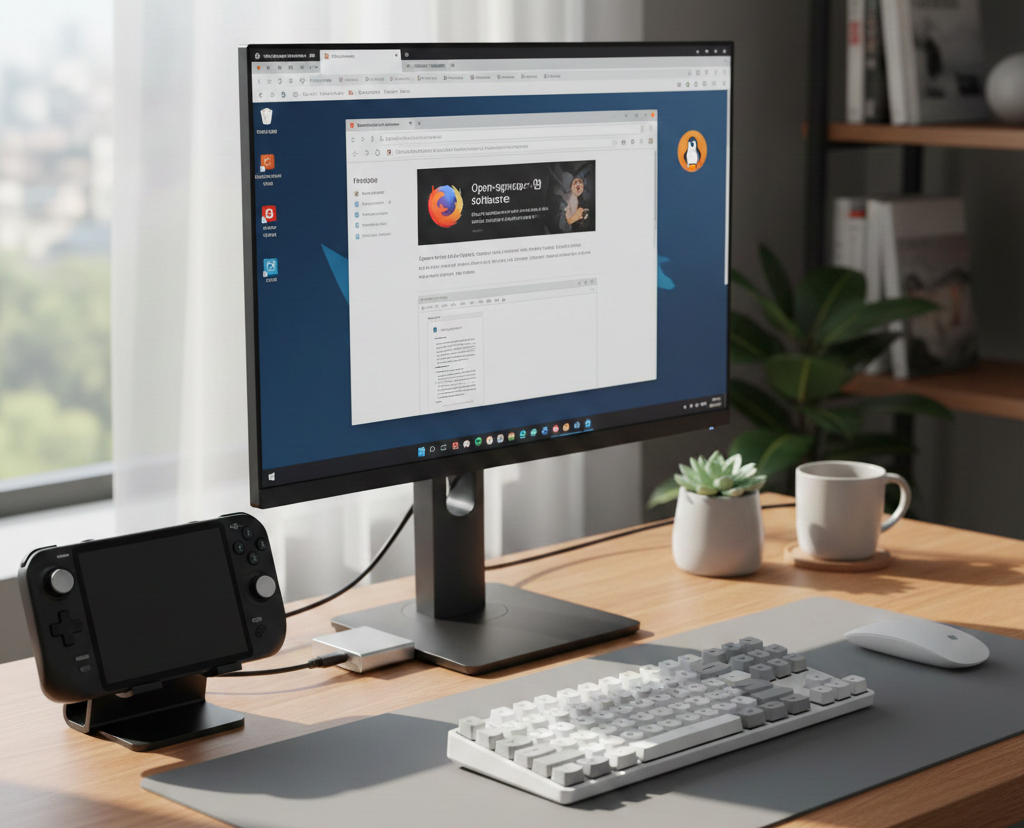
Turning the Steam Deck into a Desktop Replacement
With a USB-C hub, monitor, keyboard, and mouse, SteamOS feels like a lightweight desktop Linux system.
A complete budget-focused setup guide is available here:
https://www.compromath.com/steam-deck-as-full-desktop-replacement/
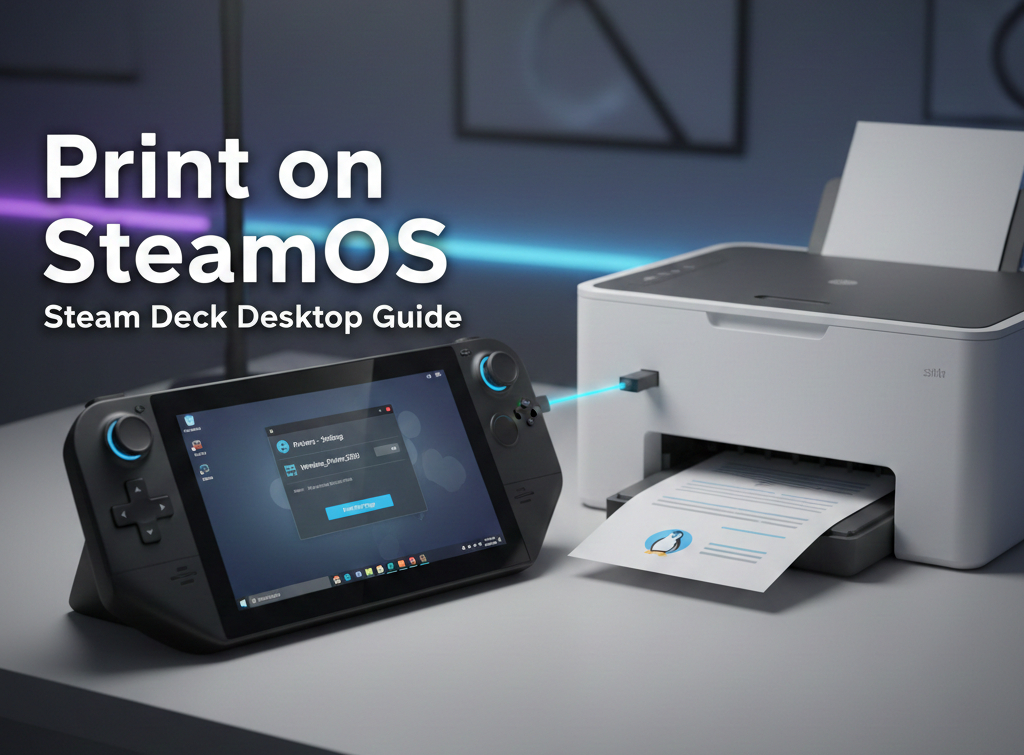
Printing from SteamOS
SteamOS supports most modern printers through Linux drivers.
Step-by-step printer setup guide:
https://www.compromath.com/add-printer-to-steamos-desktop-mode/
What Games Work on SteamOS?
Featured Snippet Ready Answer
SteamOS supports Steam games, Windows games via Proton, DRM-free games from GOG, Epic Games Store titles using launchers, cloud gaming services like Amazon Luna, and emulated console games through tools such as PCSX2 and RetroArch.
For most users, game compatibility is far broader than expected from a Linux-based system.
Why SteamOS Matters More Than the Hardware
Many handheld gaming PCs exist today, but SteamOS is what truly separates the Steam Deck from the competition.
SteamOS offers:
- An open operating system with no forced lock-in
- Excellent battery optimization
- Console-like simplicity with PC-level freedom
- Continuous updates from Valve
- A massive community of users and developers
Instead of choosing between console convenience and PC flexibility, SteamOS delivers both.
Frequently Asked Questions About SteamOS
What is SteamOS used for?
SteamOS is used for gaming, installing non-Steam games, emulation, desktop applications, and everyday computing tasks on the Steam Deck.
Is SteamOS better than Windows on Steam Deck?
SteamOS is better for battery life, controller integration, and ease of use. Windows offers broader software compatibility. The best choice depends on how you use your Steam Deck.
Can you install Windows apps on SteamOS?
Some Windows apps work on SteamOS using Proton or Wine, but not all applications are supported.
Does SteamOS support Epic Games and GOG?
Yes. Epic Games Store and GOG games can be installed on SteamOS using tools like Lutris and Heroic.
Can SteamOS replace a laptop?
For light to moderate tasks such as browsing, documents, media consumption, and gaming, SteamOS can replace a laptop when paired with external peripherals.
Final Thoughts
SteamOS is more than an operating system. It is the foundation that allows the Steam Deck to function as a gaming console, a desktop computer, and a portable emulation machine.
If you take the time to understand SteamOS, you unlock the full value of the Steam Deck. With the guides linked throughout this article, you now have a complete roadmap to mastering SteamOS and using it exactly the way you want.
# Written by Elliyas Ahmed