How to Use Your Steam Deck as a Full Desktop Replacement (Budget Setup Guide)
The Steam Deck is usually pitched as the ultimate handheld gaming console—but if you look under the hood, it’s something much more versatile. Because it’s powered by SteamOS (a Linux-based operating system) and a custom AMD chip, it isn’t just a console; it’s a fully-fledged desktop PC waiting to be unlocked.
And here’s the best part:
👉 You don’t need Valve’s expensive official dock or premium brand-name accessories to make the switch.
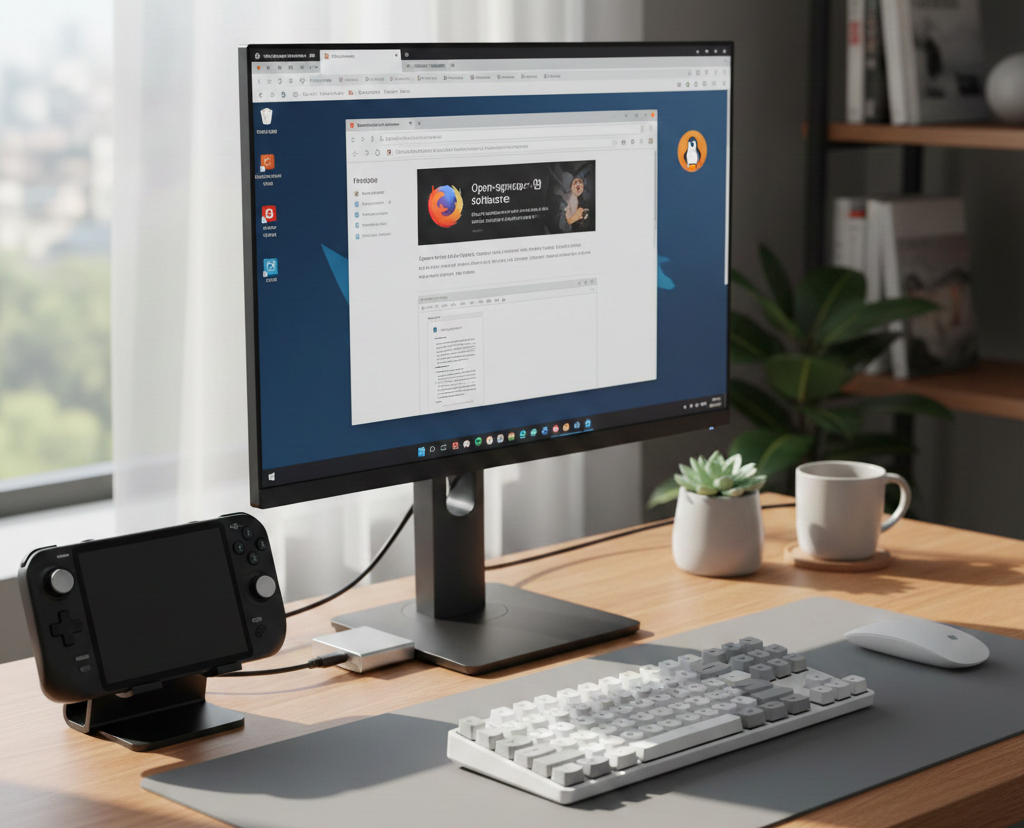
In this guide, we’ll walk through how to transform your Steam Deck into a budget-friendly desktop replacement using affordable gear and built-in software. Whether you need a machine for web browsing, office work, light coding, or just gaming on a bigger screen, the Deck is up to the task.
Why Use a Steam Deck as a Desktop PC?
Before we get into the “how,” let’s talk about the “why.” Why bother hooking a handheld up to a monitor?
It’s a perfect solution if:
- You want a low-cost Linux desktop without buying new hardware.
- You’re a student or traveler who needs a portable workstation that fits in a backpack.
- You want to keep your gaming and productivity on a single, unified device.
- You’re curious about Linux but want a plug-and-play experience that feels familiar.
While it won’t replace a $2,000 video editing rig, it’s surprisingly snappy for 90% of what most people do on a computer every day.
The Essentials: Building a Budget Setup
Skip the $80 docks. All you really need is a standard USB-C hub and a few basic peripherals you likely already have lying around.
1. The USB-C Hub (The Brains)
This is the most important piece of the puzzle. It turns that single USB-C port on top of your Deck into a command center.
What to look for:
- Power Delivery (PD): Make sure it supports at least 45W charging so your Deck stays powered while you work.
- HDMI Port: Look for one that supports 4K@60Hz (though 1080p is the sweet spot for performance).
- USB Ports: At least two USB-A ports for your mouse and keyboard.
Recommended Brands: You don’t have to overthink this—hubs from JSAUX, Anker, UGREEN, or Baseus are reliable and affordable. Even generic “no-name” hubs usually work fine because SteamOS is very flexible.
2. Any External Monitor or TV
You don’t need a fancy gaming monitor. An old office display or the TV in your living room works perfectly. For the best experience, I recommend sticking to 1080p at 60Hz—it looks sharp and keeps the interface feeling fluid.
3. Keyboard and Mouse
Trying to use a desktop interface with a controller is a headache. A basic wired keyboard and mouse are the most reliable (and cheapest) options. If you want a cleaner look, a Bluetooth set or a wireless combo with a single USB dongle works great, too.
Hardware Setup: Step-by-Step
Once you have your gear, the physical setup takes about two minutes.
- Plug your USB-C hub into the Steam Deck.
- Run an HDMI cable from the hub to your monitor.
- Plug your keyboard and mouse into the hub.
- Connect your Steam Deck power adapter to the hub’s “PD” port.
- Turn everything on.
Switching to Desktop Mode
By default, the Deck opens the handheld “Gaming Mode.” To get to the PC side:
- Press the STEAM button.
- Scroll down to Power.
- Select Switch to Desktop.
Wait a few seconds, and you’ll see the KDE Plasma Desktop—it looks and feels very similar to Windows, so you’ll feel right at home.
Software & Optimization
Now that you’re in Desktop Mode, you need some apps. Instead of hunting for installers online, use the Discover Software Center (the blue shopping bag icon on your taskbar).
Here are the essentials you can install with one click:
- Browsers: Firefox is there by default, but you can grab Chrome, Brave, or Edge.
- Productivity: LibreOffice or OnlyOffice are fantastic free alternatives to Microsoft Word and Excel.
- Entertainment: VLC for movies and Spotify for music.
- Communication: Discord, Slack, and Zoom all have native apps that work perfectly.
Pro Tip: Set a System Password
To perform certain administrative tasks or updates, Linux will ask for a password. Since the Deck doesn’t come with one set, you’ll want to create it: Open the Terminal (Konsole), type passwd, hit enter, and follow the prompts. Don’t forget this password!
Final Verdict: Is it a “Real” Desktop?
The short answer? Yes.
If your daily routine involves checking emails, writing docs, watching YouTube, and doing some light gaming, the Steam Deck isn’t just a “workaround”—it’s a genuinely great PC. It’s quiet, power-efficient, and more than fast enough for multitasking.
Just remember its limits: it’s not meant for 4K video editing or heavy 3D design work. But for a portable, all-in-one workstation that fits in your hand? It’s arguably the best value in tech right now.
# Written by Elliyas Ahmed