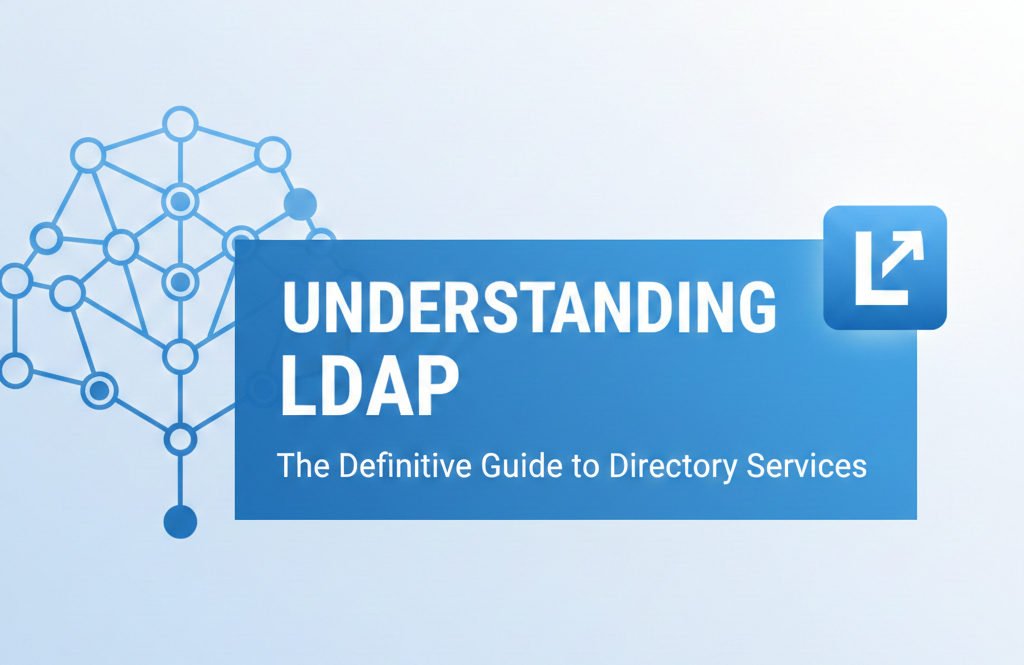
Understanding LDAP: The Definitive Guide to Directory Services
In the modern digital landscape, managing thousands of user identities, passwords, and network assets across various platforms can be a chaotic challenge. LDAP (Lightweight Directory Access Protocol) serves as the industry-standard “language” that allows these different systems to communicate with a central directory.
What is LDAP?
LDAP is an open, vendor-neutral industry standard application protocol used for accessing and maintaining distributed directory information services over an Internet Protocol (IP) network.
Think of LDAP as a highly sophisticated, digital version of a phone book. While a standard database is designed for frequent updates and complex relationships, LDAP is optimized for fast read and search operations, making it the perfect tool for looking up user information and credentials.
Core Functionality
- Authentication: LDAP is most commonly used as a central repository for usernames and passwords. This allows various applications (VPNs, Email clients, HR portals) to connect to a single server to validate users, forming the backbone of Single Sign-On (SSO).
- Directory Services: Data is organized in a hierarchical tree structure known as a Directory Information Tree (DIT). This hierarchy allows for efficient categorization of data based on geography, department, or organization level.
- Asset Management: LDAP isn’t just for people. It can store metadata for groups, network devices, printers, and other physical assets, allowing for centralized management of the entire corporate infrastructure.
How LDAP Works: The Client-Server Model
LDAP operates on a straightforward request-response model. When a user tries to log into a system, an LDAP client (the application) communicates with the LDAP server (the directory).
The Four-Step Process:
- Session Connection: The client establishes a connection to the server. By default, this happens on Port 389 (unencrypted). For secure, encrypted communication, LDAPS is used via Port 636.
- Bind: This is the authentication phase. The client identifies itself to the server. This can be an “anonymous bind” (limited access) or a “base bind” using a username and password to gain full access to the directory.
- Search/Modify: Once authenticated, the client performs its task. This could be searching for a user’s email address, verifying a password, or updating a specific attribute like a phone number.
- Unbind: The client sends a request to close the connection, and the session is terminated.
LDAP vs. Active Directory: What’s the Difference?
One of the most common points of confusion in IT is the difference between LDAP and Active Directory (AD).
- LDAP is a Protocol: It is the “language” used to talk to a directory.
- Active Directory is a Service: It is a proprietary Microsoft product (a database) that “speaks” LDAP.
While they are often used together, remember that LDAP is the universal standard, while Active Directory is a specific implementation of that standard.
Key Implementations
If you are looking to deploy a directory service, there are several industry-leading options:
- Active Directory (AD): The most common choice for Windows-centric environments. It uses LDAP as its primary access protocol but adds features like Group Policy management.
- OpenLDAP: A highly flexible, open-source implementation. It is the “gold standard” for Linux environments and organizations that want a vendor-neutral solution.
- Red Hat Directory Server: A Unix-based tool designed for enterprise-level centralized identity management, built for high-scale environments.
How to Use LDAP: A Practical Overview
Using LDAP effectively involves three main stages: Setup, Integration, and Querying.
1. Structure Your DIT
Before inputting data, you must design your Directory Information Tree. A typical structure looks like this:
- dc=example, dc=com (Domain Components)
- ou=Users (Organizational Unit)
- cn=John Doe (Common Name/Individual Entry)
2. Configure Authentication
To use LDAP for authentication, you configure your third-party applications (like Jira, WordPress, or a VPN) to point to your LDAP server’s IP address. You provide a “Service Account” that the application uses to “Bind” and search the directory for the users attempting to log in.
3. Querying the Directory
Administrators use LDAP Search Filters to find specific data. For example:
- To find a user by their ID:
(uid=jdoe) - To find all printers in a specific building:
(&(objectClass=printer)(l=BuildingA))
4. Secure Your Connection
Because LDAP messages are sent in plain text by default, it is a security best practice to always use LDAPS (LDAP over SSL/TLS). This ensures that sensitive credentials are encrypted as they travel across the network.
LDAP Across Operating Systems
While LDAP is a universal protocol, each operating system interacts with it using different tools and services.
1. Windows: The Active Directory Powerhouse
Windows environments almost exclusively use Active Directory (AD).
- The Tool: The Active Directory Users and Computers (ADUC) console is the primary GUI for managing LDAP data.
- How it works: When you join a Windows PC to a “Domain,” the computer uses LDAP to verify your credentials against the Domain Controller.
- PowerShell: Admins often use the ActiveDirectory module in PowerShell to perform LDAP queries, such as:Get-ADUser -Filter ‘Name -like “*John*”‘
2. Linux: The Open-Source Standard
Linux is where LDAP’s “Lightweight” nature shines, typically through OpenLDAP.
- The Tool: The command-line utility
ldapsearchis the bread and butter for Linux admins. - How it works: Linux servers use the Name Service Switch (NSS) and PAM (Pluggable Authentication Modules) to “talk” to LDAP. This allows users to log into a Linux terminal using their corporate LDAP credentials.
- Example Command:
ldapsearch -x -H ldap://example.com -b "dc=example,dc=com" "(uid=jdoe)"
3. macOS: Native Directory Integration
Apple integrates LDAP into its “Open Directory” architecture.
- The Tool: Directory Utility (found in
/System/Library/CoreServices/Applications). - How it works: macOS can “Bind” to both OpenLDAP and Active Directory. Once bound, macOS users can log in using network accounts, and apps like Contacts or Mail can automatically pull company-wide address books via LDAP.
Practical Examples of LDAP in Action
Example 1: The “Simple Bind” (Authentication)
When you log into a company VPN, the VPN client performs a “Bind” operation:
- Request: “Server, here is the user
uid=smit01and the passwordsecret123.” - Server Action: Looks up
uid=smit01in the DIT, verifies the hashed password matches. - Response: “Success” or “Invalid Credentials.”
Example 2: Complex Search Filters
LDAP uses a specific syntax for searching. Here are common filters used by admins:
- Find all users in the Marketing department:
(&(objectClass=user)(ou=Marketing)) - Find everyone whose name starts with “Ann”:
(cn=Ann*) - Find users who are NOT in the ‘Disabled’ group:
(&(objectClass=user)(!(group=Disabled)))
Frequently Asked Questions (FAQ)
Q: Is LDAP the same as a Database (like MySQL)?
A: Not quite. Relational databases (SQL) are designed for frequent “writes” (updating data). LDAP is a hierarchical directory optimized for frequent “reads” (looking up data). It is much faster for authentication because it assumes the data doesn’t change every second.
Q: What is LDIF?
A: LDIF (LDAP Data Interchange Format) is the standard plain-text file format used to import or export LDAP entries. It looks like this:
Plaintext
dn: cn=John Doe,ou=Users,dc=example,dc=com
objectClass: person
cn: John Doe
sn: Doe
mail: john.doe@example.com
Q: Is LDAP secure for passwords?
A: Standard LDAP (Port 389) sends data in plain text, which is not secure. You should always use LDAPS (Port 636) or StartTLS, which wraps the communication in an encrypted tunnel (SSL/TLS).
Q: Can I use LDAP for Cloud apps (like Slack or Zoom)?
A: Directly, it’s difficult because LDAP is an “on-prem” protocol. Usually, organizations use a “bridge” like Okta or Azure AD, which talks to your LDAP server and converts the data into SAML or OIDC for cloud apps.
Summary Table: LDAP Implementation Comparison
| Feature | Windows (Active Directory) | Linux (OpenLDAP) | macOS (Open Directory) |
| Primary Tool | AD Users & Computers | ldapsearch / slapd | Directory Utility |
| Backend | Proprietary Database | MDB / BDB | OpenLDAP (Forked) |
| Main Use Case | Group Policy & Login | Centralized Auth & Apps | Network Account Login |
Summary
LDAP remains a cornerstone of enterprise IT because it provides a reliable, fast, and standardized way to manage identities. Whether you are using it to power Single Sign-On or to keep track of network hardware, understanding the protocol is essential for anyone managing a modern network.
# Written by Elliyas Ahmed